Your music shouldn’t go quiet when you join a call.
A free, open-source menu-bar app for macOS. It stops the system from muting everything else during calls, and keeps your AirPods at full quality by using your Mac’s mic instead.
macOS 14 or later · No account · No kernel extension
Made for watching something together on a call
You are on FaceTime or WhatsApp with someone, and you press play on the same film. The second the call connects, the film drops to a whisper and the call sits on top of it. You turn the volume up, the call gets loud, the film is still quiet. CallLane ends that. The film plays at full volume, the call sits where you set it, and your AirPods sound like AirPods for the whole evening.
You are not the only one
“On full volume I can hardly hear anything.”
Apple Community
“Music from Spotify sounded like it was being transmitted over AM frequency.”
edwinb.co.uk
“Audio ducking doesn’t deactivate after the call. The only fix is restarting my Mac.”
Apple Community
“Your voice goes from studio-quality 48 kHz to walkie-talkie 16 kHz mono.”
GitHub
“It has been a decade that people are facing this issue.”
Apple Community
“The ‘fix’ of switching to the internal mic is not really a fix. It’s a workaround.”
StackExchange
Two fixes in one menu-bar icon
Media stays loud.
The moment a call starts, macOS drops every other sound by about 20 dB. No setting turns it off. CallLane gives your call app its own audio device, so the ducking applies to the call and nothing else. Music, videos and games stay at full volume.
Your headphones stay at full quality.
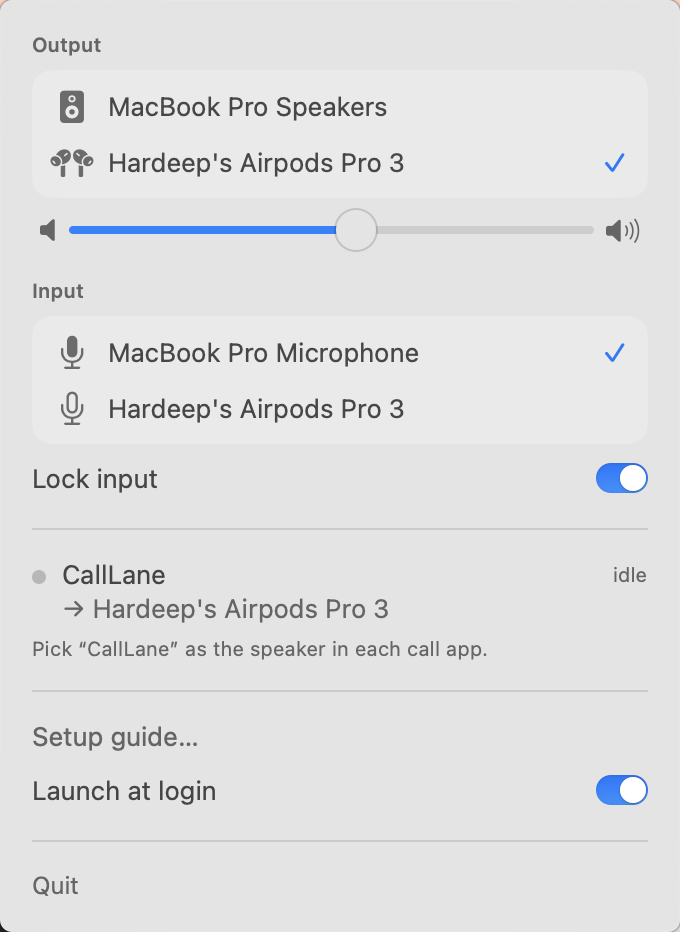
On a call, your Mac switches to your headphones’ microphone. Bluetooth can’t carry high-quality audio and a mic at once, so everything collapses to tinny headset quality. CallLane pins the input to your Mac’s built-in mic, which sounds better anyway, so your AirPods keep streaming at full quality.
Works with FaceTime, WhatsApp, Zoom, Meet, Slack, Teams and Discord.
Setup takes about a minute
- Install with Homebrew. Three commands, one admin password prompt.
The last line is needed because CallLane is signed ad-hoc, not with an Apple Developer ID. Without it macOS says it cannot verify the app, and you must allow it once under Privacy & Security.brew trust --tap rav4nn/tap brew install --cask rav4nn/tap/calllane xattr -dr com.apple.quarantine /Applications/CallLane.app - In each call app, pick “CallLane” as the speaker. Once per app, before the call starts.
- Keep your headphones as the system output and turn on Lock input. That’s it. The phone icon fills while a call is using CallLane.
Honest limits
- It adds about 10 to 15 ms of latency to call audio. Imperceptible in use.
- Spatial Audio and head tracking may not apply to the call.
- Requires macOS 14 or later. Tested on macOS 26 with AirPods Pro 3.
- Signed ad-hoc, so macOS asks you to allow it once. The install steps above cover it.
Privacy
No account, no analytics, no network calls. CallLane reads its own hidden audio tap. It never touches your real microphone. The source is on GitHub: the app is MIT, the driver is GPL-3 and derived from BlackHole.